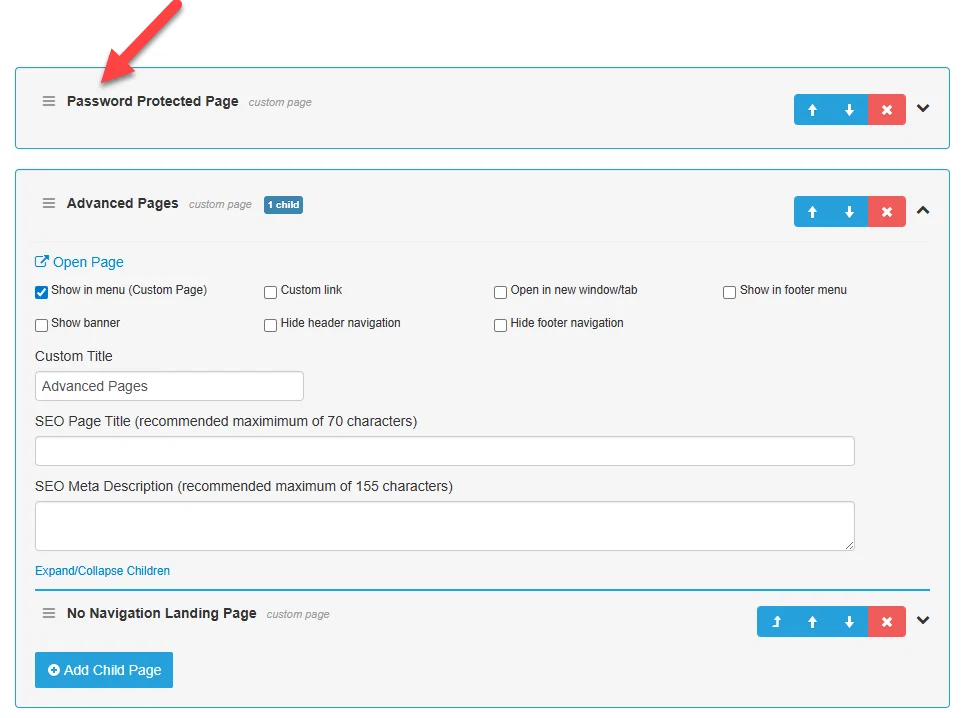
Drag and Drop Menu Configuration
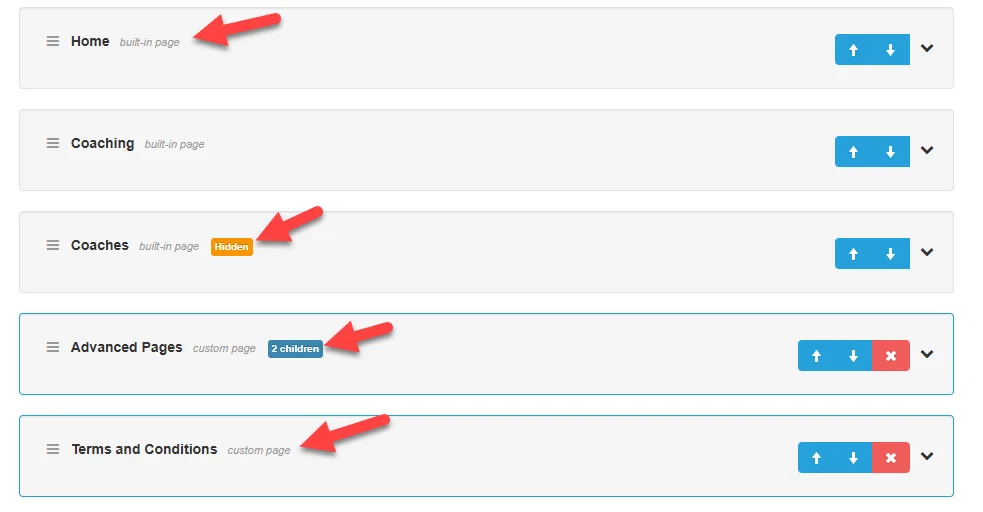
You can now drag and drop your public website and member menu items around to quickly reorganize your menu. We've also collapsed the menu item details to save space and added new "Hidden" and "Built-in page" and "Number of children" and "Custom page" indicators so you glean more about a page without having to expand the detail.
You can now
- Drag and drop a menu item on the same level to a different position
- Move a top level menu item as a child of another top level menu
- Promote a child level menu to the top level menu
- Move a child level menu item from one parent to another
Note: A built in page cannot have children, and a built in page cannot be a child of another page in the member menu (but it can on the public website menu)
Collapse Menu Items with Indicators
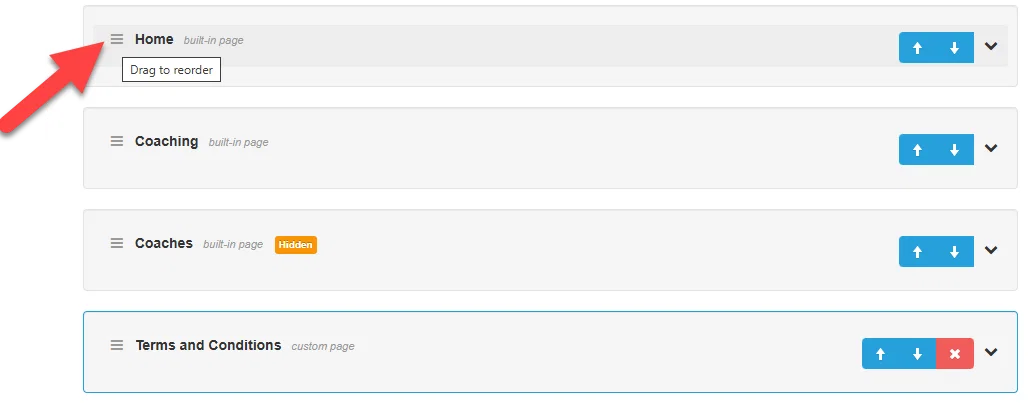
Drag and Drop
Use the drag handle to drag and drop in another position
Child Items
Expand a top level menu item to view the children, you can drag to reorder, or drag to another parent that is expanded.
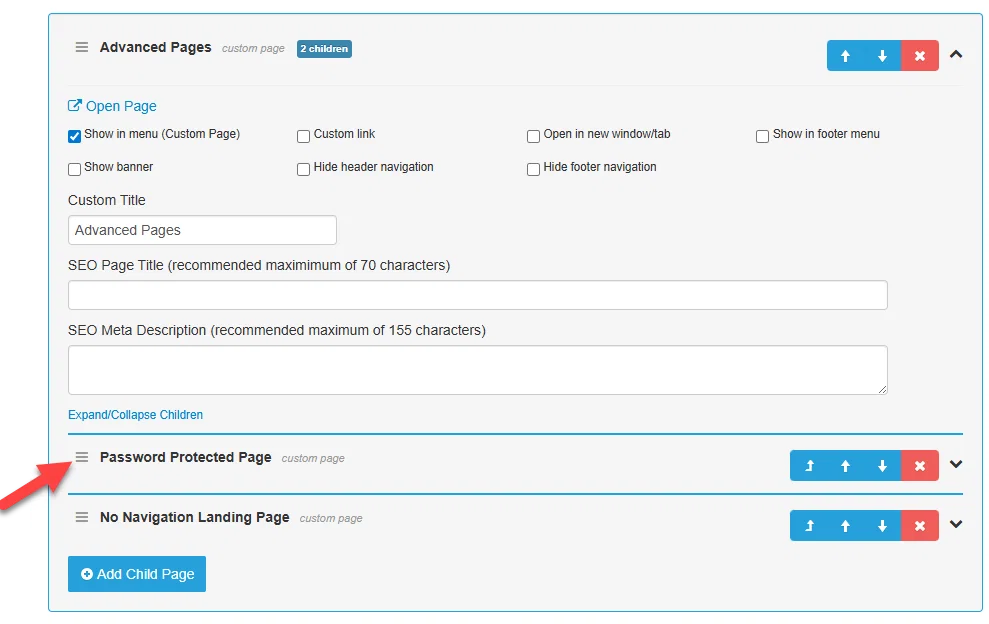
Use the "Up a level" arrow to promote an existing child page back to the top level of the menu.
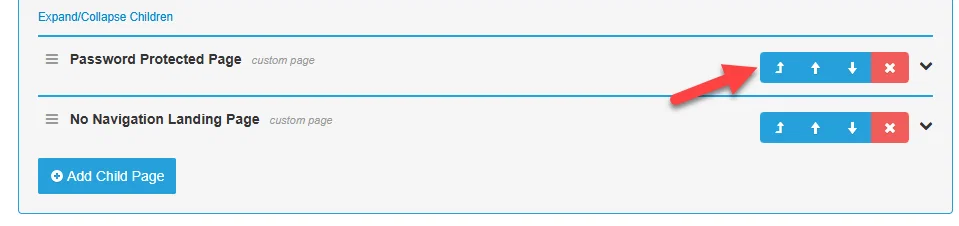
The child will now be above it's previous parent on the top level.